

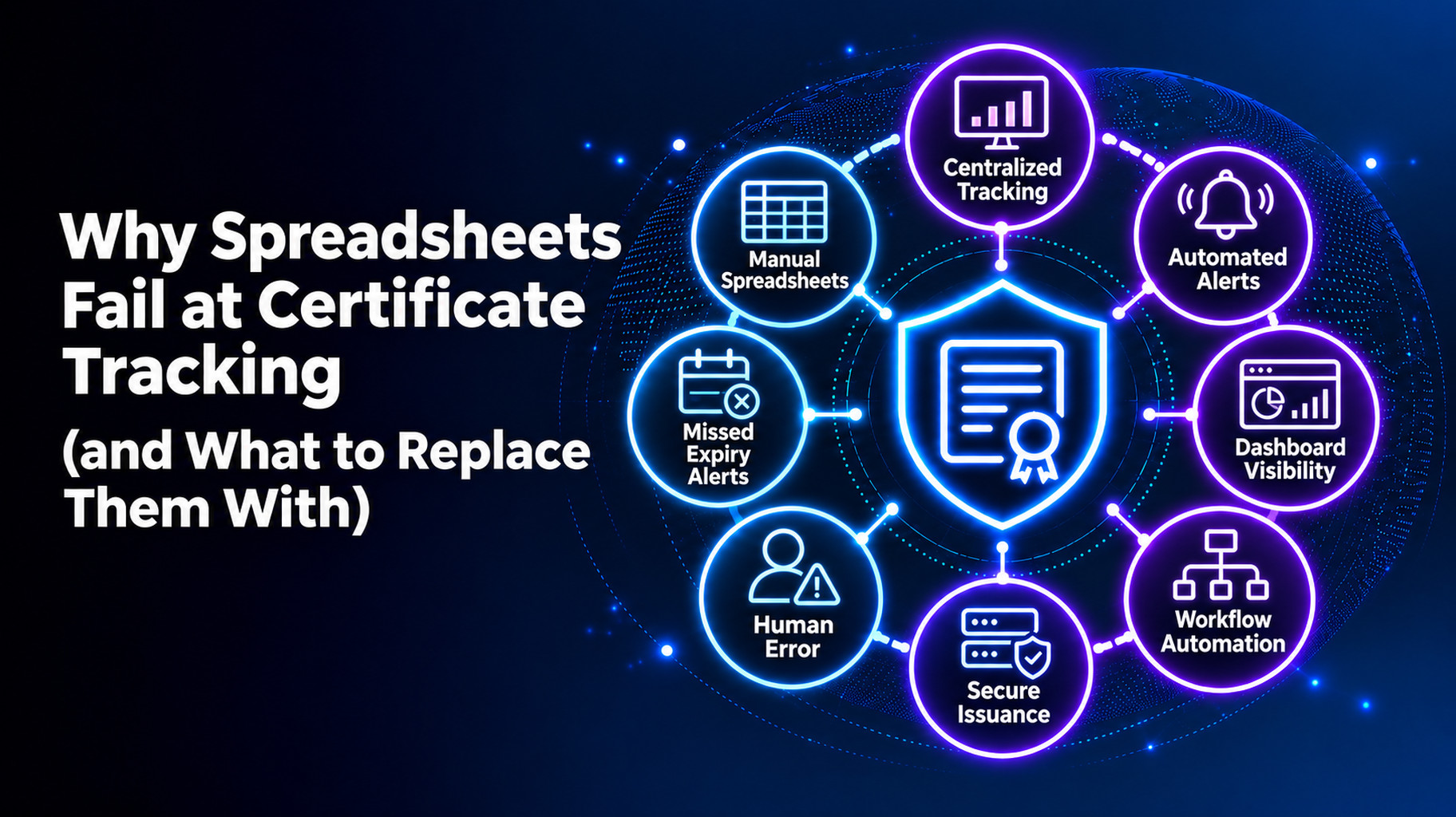
Why Spreadsheets Fail at Certificate Tracking (and What to Replace Them With)
Introduction: Why Do Spreadsheets Fail at Certificate Tracking?
A certificate-tracking spreadsheet is ineffective because it relies on individuals. There has to be somebody who finds all the certificates, types in the information, updates them, and remembers to check for expiration dates. Data becomes stale, certificates are lost, no one is notified, and no audit trail is maintained. A certificate lifecycle management solution does that for you.
Spreadsheets aren’t bad tools! They were never designed to do this task. You will read about 6 ways they fail, a brief example, and what to use instead. You’ll get tips on making the transition as well. Let’s get started.
Why Teams Start With a Certificate Tracking Spreadsheet
Almost all teams begin here. A spreadsheet is free, familiar, and quick. For a handful of certificates and one owner, it works fine. The names, expiry date, and person in charge are listed. Then, set a reminder on the calendar.
When the list gets longer, the problem begins. Our guide on certificate management vs certificate lifecycle management will help you understand the difference between them.
Why a Certificate Tracking Spreadsheet Fails
The six most common failures are described below.
1. It Goes Stale Fast
The spreadsheet only knows what anyone types into it. A server moves, and a certificate is replaced, but nobody updates the row. The list is incorrect within weeks. Old data that people trust is worse than no data.
2. It Can’t Find Unknown Certificates
What you don’t know you can’t track. Developers create certificates in cloud and container tools in minutes. These do not get to the sheet. See how important discovery is with our guide to finding all certificates throughout your enterprise.
3. It Doesn’t Send Alerts
A spreadsheet cannot give any warning. It uses calendar reminders, and those are sent to one person. If that person is not there or is gone, no one knows. A missed date is an outage.
4. Ownership Gets Lost
The name in a row is frequently obsolete. People change jobs. Teams reorganize. The one that actually expires is a certificate that has no real owner.
5. It Doesn’t Scale
Lifespans are shrinking. Public TLS certificates now last up to 200 days. They drop to 100 days in March 2027 and 47 days in March 2029. About 7,800 renewals a year are needed for 1,000 certificates in 47 days. That’s impossible to keep track of by hand.
6. It Leaves a Weak Audit Trail
Auditors pose questions concerning the approval of a renewal and the date of approval. Anyone can edit a spreadsheet, with no history. That makes it difficult to establish any facts.
A Quick Example
Suppose that a business maintains 300 certificates in a common spreadsheet. A server moves, and the row is not updated. The owner leaves. The reminder is sent to an unassigned mailbox. The certificate expires, and a customer-facing page goes down. If a named owner and a back-up were there, it would have been spotted weeks before. There are more of these misses that are covered in our guide to common digital certificate expiration errors and how to avoid them.
When a Spreadsheet Is Still Enough
Use a spreadsheet if you have a limited number of certificates, a single clear owner, and no audit pressure. Even at that time, establish a definite review date. When there are more owners, more systems, or shorter life spans, plan the move.
What to Replace a Certificate Tracking Spreadsheet With
Adopt a certificate lifecycle management (CLM) solution. It self-discovers certificates, maintains them in a single location, and informs the named owners of alerts. It can also renew and install certificates, and keep records for audits.
The best certificate lifecycle management solutions have the following characteristics:
- Public and private certificates are automatically found.
- Named owners/backups on one inventory.
- Escalation rules for alerts
- Automated renewal and installation.
- The workflow for the approval of high-risk certificates.
- Reports and audit trails are provided.
If you’re comparing tools, take advantage of our handy enterprise certificate lifecycle management tools evaluation checklist.
How to Move From a Spreadsheet to CLM
Follow the 6 steps below:
- Maintain your existing list. Take it as a point of departure.
- Run discovery. Compare results with your sheet and identify differences.
- Assign owners. Specify an owner and a backup for each certificate.
- Set alerts. Send to individuals, not a common mailbox.
- Automate the safe renewals first. Regular web site certificates are a good start.
- Retire the spreadsheet. Maintain a single source of truth.
Avoid taking weeks to clean the old sheet before installing the new one. Let the discovery create a better list and then compare the two lists.
Replace Your Certificate Tracking Spreadsheet With AppleShine Tech
Planning is necessary to move off a spreadsheet. That’s where AppleShine Tech can help.
Our certificate lifecycle management solution is part of a complete certificate lifecycle management service. It covers discovery, inventory, issuance, deployment, monitoring, renewal, revocation and retirement.
This is what you’ll receive:
- One perspective of internal and external certificates, with distinct owners
- Support of public CAs and private PKI.
- Automating renewal via ACME, SCEP, or EST if your configuration allows.
- Alerts, Approval history, and audit trails for reviews
No need to reinvent the wheel – we integrate with your current PKI and certificate authorities.
Conclusion
A spreadsheet is a fine place to start. It’s a bad place to live. It goes stale, it fails to find certificates it doesn’t know, it does not alert, it doesn’t retain owners of certificates, and it cannot deal with shorter lifespans.
The length of time for certificates will continue to decrease, and the gap will widen. Early movement will allow your team to get off to a good start. Firstly, run discovery and name owners. Next, replace the spreadsheet with a certificate lifecycle management solution, and maintain an up-to-date inventory with minimal effort.
Ready to retire the spreadsheet? Talk to AppleShine Tech about a review of your certificate setup, and share your questions in the comments below.
FAQs About Certificate Tracking Spreadsheets
Why do spreadsheets fail at certificate tracking?
They depend on manual updates. Data goes stale, unknown certificates are missed, alerts don’t exist, and there’s no audit trail.
Can I track SSL certificates in Excel?
You can get a handful of certificates. As the number grows, shorter lifespans and changing owners make it risky.
What should I use instead of a spreadsheet for certificate tracking?
Use a certificate lifecycle management solution. It discovers certificates, tracks owners, sends alerts, and automates renewals.
When should I stop using a certificate tracking spreadsheet?
Move when you have many certificates, several owners, audits to pass, or certificates that renew every few months.
How does a certificate lifecycle management solution replace a spreadsheet?
It builds the inventory by discovery, keeps it current, alerts named owners, and records every renewal and approval.